Review Release Requests
Review requests to return quarantined emails to their recipients.
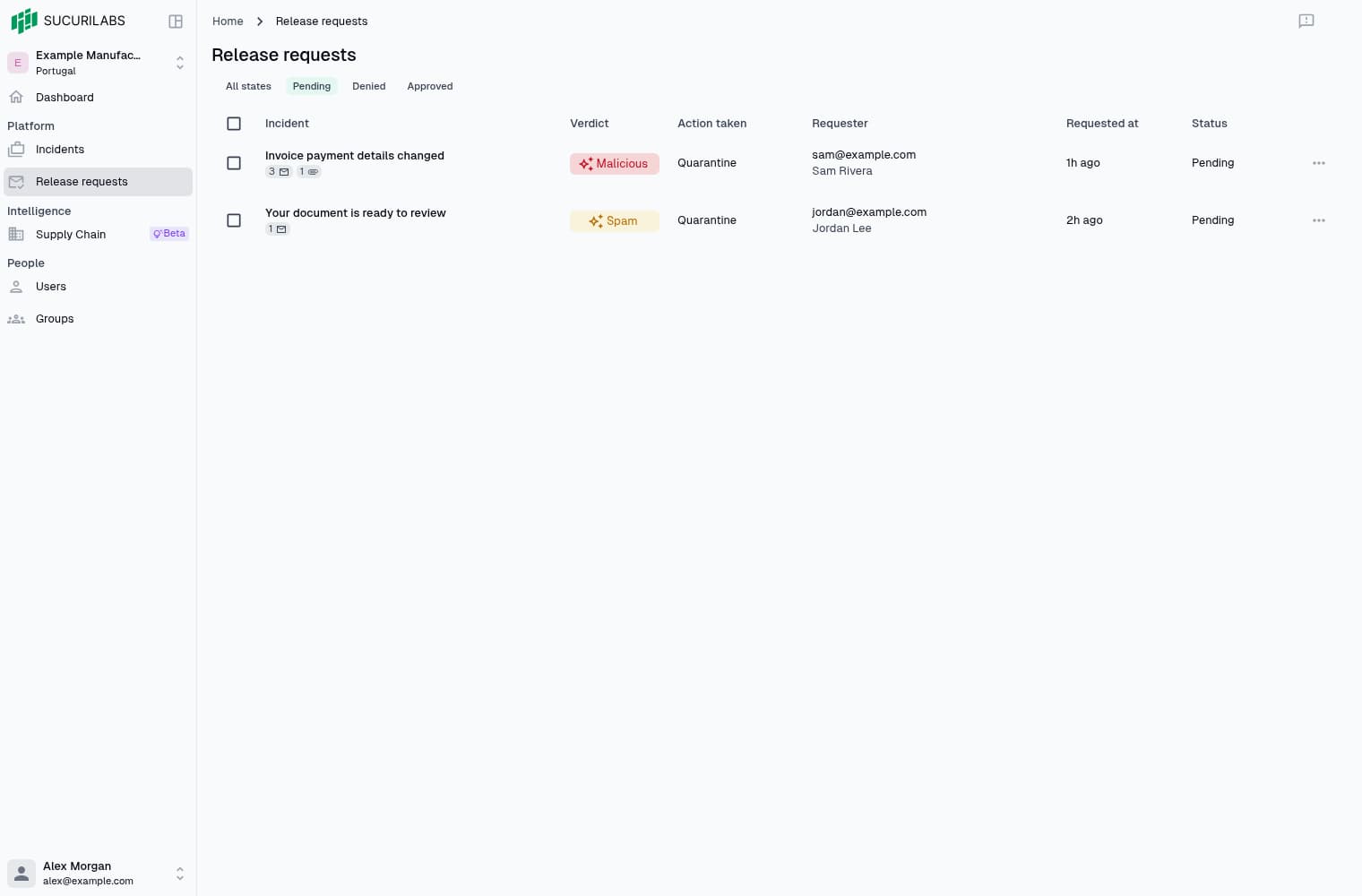
Release request overview
Mailbox users submit requests from a quarantine digest. Review them in Platform > Release requests or in an incident’s Release requests side panel.
Viewing and deciding requests require separate permissions. Receiving reviewer notifications does not grant approval permission.
Review the queue
Each row represents one request and shows:
- Incident
- Verdict
- Action taken
- Requester mailbox
- Requested at
- Status
Message and attachment counts refer to the incident. Opening the incident requires incident-read permission.
Available filters:
- All states
- Pending
- Denied
- Approved
The incident side panel opens with Pending requests. Choose View details from a row’s actions menu to see its history, reviewer, and denial reason.
The requester identifies the mailbox, not necessarily the person who opened the link. Digest links can be forwarded.
Approve or deny
Review the incident evidence, then open a Pending request’s actions menu and choose Approve or Deny. Confirm the decision in the dialog. Denials require a reason, which is included in the recipient’s notification.
Approval starts restoration of the requested message in its mailbox. Other messages in the incident, its classification, and its remediation action are unchanged.
Bulk decisions
Select Pending requests, open Actions or Command Search, and choose Approve or Deny. Confirm to apply the decision to up to 50 requests. Select-all includes only eligible Pending requests on the current page.
Changing the page or filter clears the selection. If some decisions fail, refresh and review the remaining requests before retrying.
Understand the status
| Status | Meaning |
|---|---|
| Pending | Waiting for review |
| Denied | Declined by a reviewer or closed because the message is unavailable |
| Approved | Approved for release; inbox delivery is not yet confirmed by this status |
Automatic denials show Message no longer available. This is not a reviewer rejection. Messages that become unavailable after approval can remain Approved.
Approval does not confirm inbox delivery. The recipient receives a restoration notice only after the message’s return to the inbox is verified.
If restoration fails, authorized reviewers can choose Retry restoration from the request’s actions menu. A retry starts another attempt, not a delivery confirmation. Contact support if failures continue.
Incident activity
Verified restorations appear in Triage activity with the mailbox, reviewer or system actor, and completion time. Approval alone does not add a restoration entry. The timeline refreshes while the panel is open and the page is visible.
Request history tracks decisions; incident activity records completed actions. See Triage for the investigation workflow.