Triage
The Incident triage page is the main workspace for reviewing a single incident. From this page, administrators can inspect message information and move through the available triage sections during an investigation.
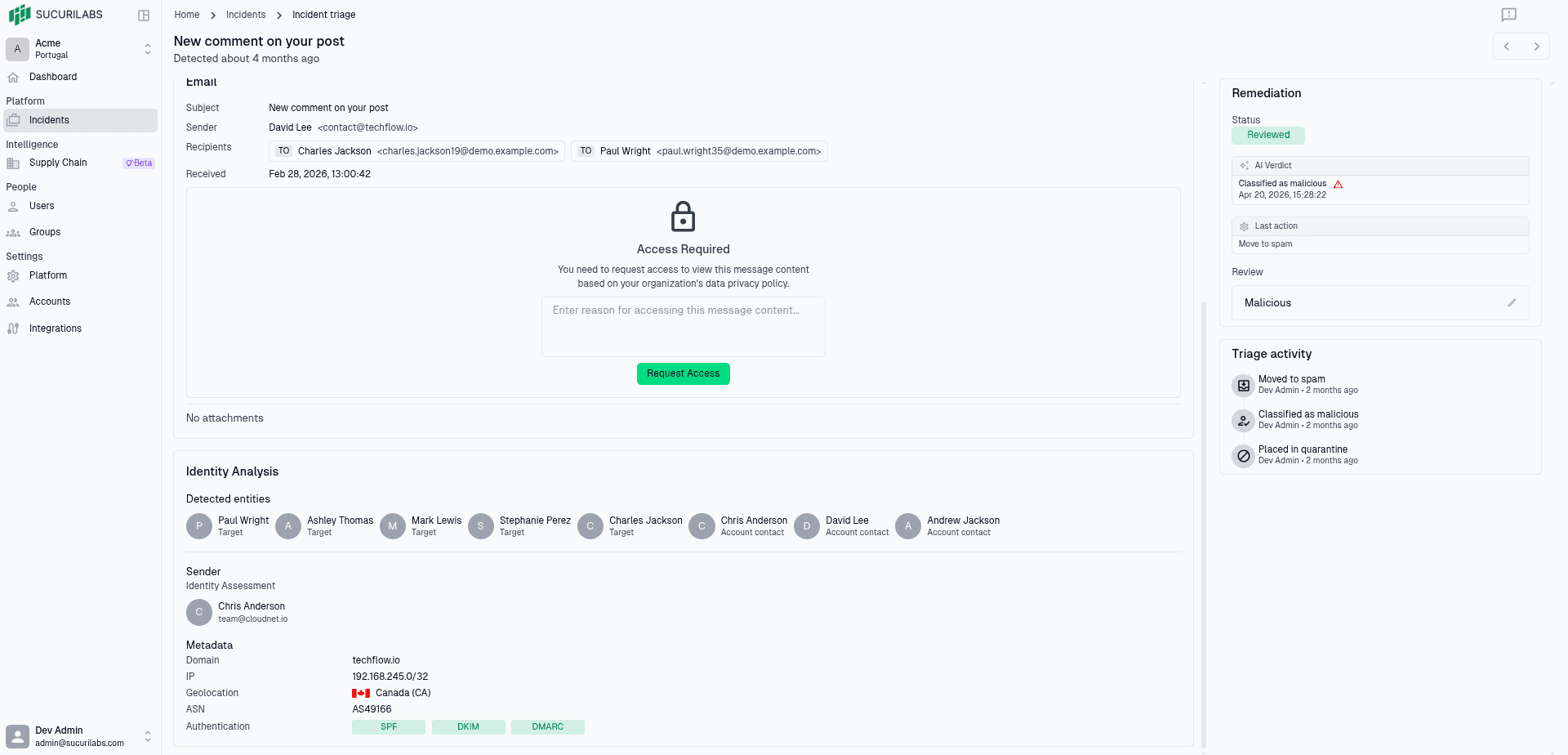
It brings together the incident summary, email details, supporting analysis, attachments, and remediation actions in one place. Use the sections on the page to review the available evidence and decide what follow-up is needed.
Overview Section
The Overview section explains the verdict SucuriLabs assigned to the incident and shows the main reasons behind that classification.
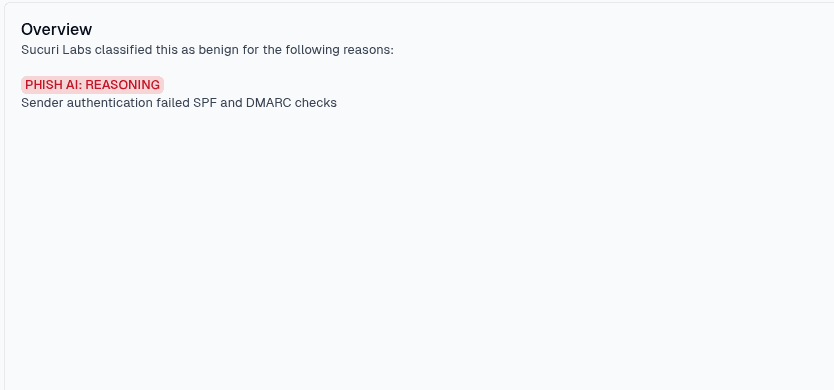
Classification reasoning
SucuriLabs lists the verdict it assigned to the message, such as benign, malicious, spam, or unknown. Under the verdict, the Overview section shows the detection signals that influenced the classification.
These signals can include checks such as sender authentication results, suspicious message content, link analysis, attachment analysis, or other security indicators found during inspection.
Using the overview
Use this section as the first summary of why the incident was classified a certain way. The overview helps analysts decide whether the verdict looks correct or whether they should continue reviewing the email details, identity analysis, attachments, and remediation history.
Remediation
The Remediation panel is where administrators record the final review decision for an incident and choose what action should be taken on the message.
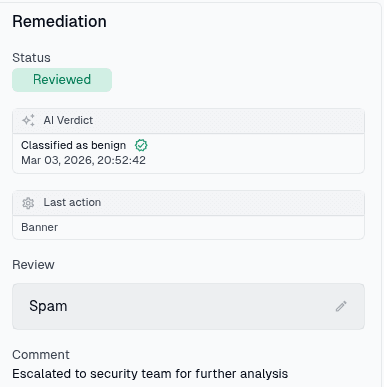
How remediation works
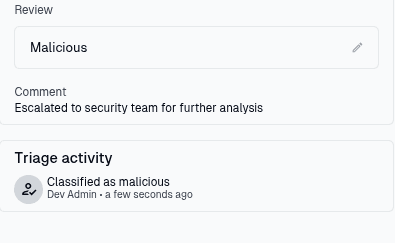
Remediation starts with SucuriLabs’s analysis and ends with an administrator’s review decision. The panel shows the current status, the AI verdict, the last action applied, and any review notes that were saved.
To update the remediation, select the edit icon in the Review field. This
opens the remediation form.
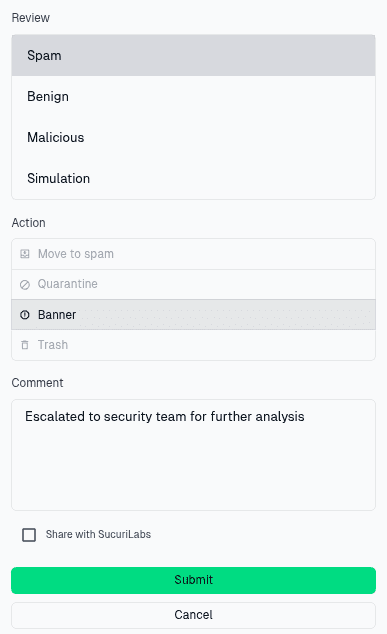
Review decision
Choose the verdict that best matches the incident after investigation:
| Review option | When to use it |
|---|---|
Spam | The message is unwanted or unsolicited, but not necessarily malicious |
Benign | The message is legitimate and should not be treated as a threat |
Malicious | The message is harmful or part of a phishing or attack attempt |
The review decision is the analyst’s final classification for the incident. It can confirm or override the AI verdict shown in the panel.
Remediation action
After selecting the review decision, choose the action SucuriLabs should apply to the message:
| Action | What it does |
|---|---|
Move to spam | Moves the message to the recipient’s spam folder |
Quarantine | Isolates the message so users cannot interact with it |
Restore | Restores the email to the user’s inbox |
Banner | Adds a warning banner to help users identify the message as risky |
Trash | Moves the message out of the inbox and into trash |
Some actions may be unavailable depending on the message state, integration, or organization settings.
Comment and sharing
Add a comment to explain the reason for the review decision or remediation action. Comments help other administrators understand what happened during the investigation.
Enable Share with SucuriLabs when the incident should be shared to help improve detection rules and analysis. Leave it disabled when the message should remain private to the organization.
Select Submit to save the review and apply the remediation. Select Cancel to close the form without saving changes.
Triage activity
After remediation is submitted, the activity history records what changed, who made the update, and when it happened.
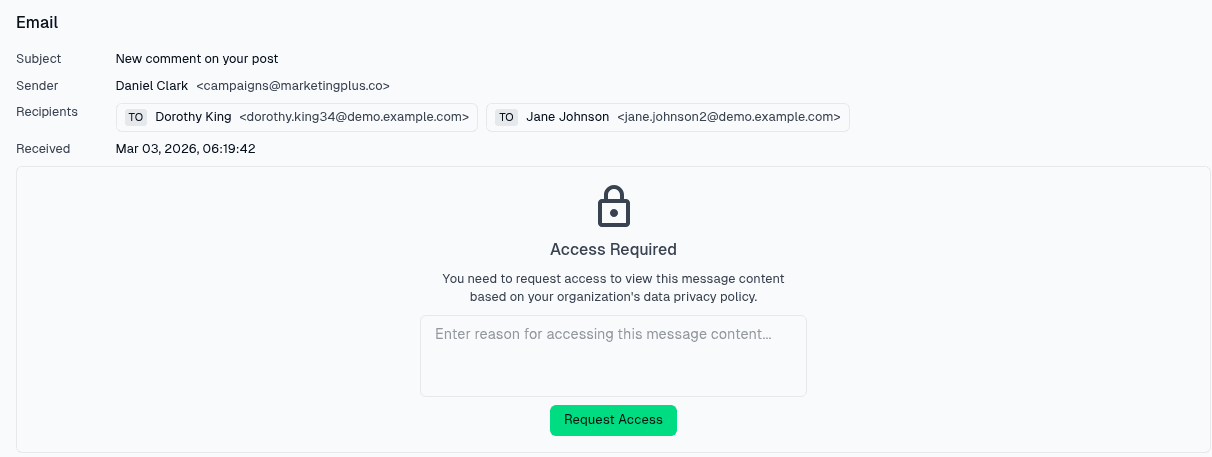
The Email section shows the original message details for the incident. Analysts use this section to confirm who sent the message, who received it, and when it arrived.
Metadata
The top of the section shows the key message fields:
| Field | Description |
|---|---|
Subject | The subject line of the message |
Sender | The sender name and email address |
Recipients | The users who received the message |
Received | The date and time the message was received |
This information helps analysts verify whether the message came from an expected sender and whether the recipients match the suspected campaign or incident scope.
Message content access
If message content access is restricted by the organization’s privacy policy, the message body is locked behind an access request. Enter the reason for viewing the content, then select Request Access.
When access is approved, the message content can be viewed for deeper investigation. Access requests are recorded so administrators can audit who viewed sensitive message content and why.
Attachments
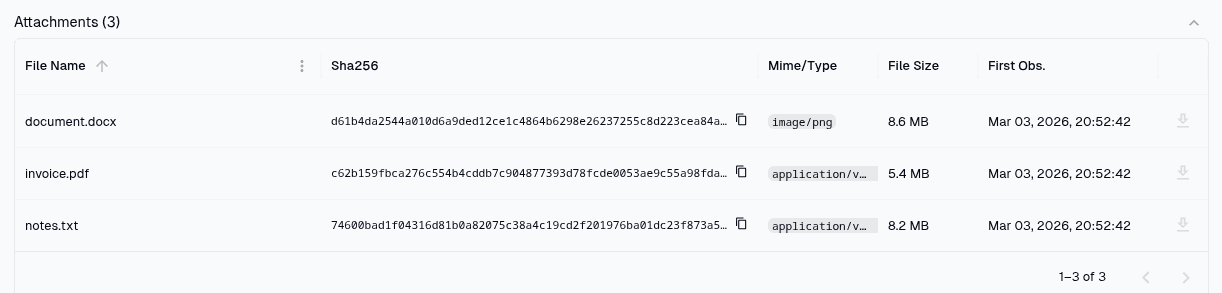
The Attachments section lists the files found in the incident message. Analysts use this section to review attachment details and identify files that may need additional investigation.
Attachment metadata
Each attachment is shown in a table with file metadata:
| Column | Description |
|---|---|
File Name | The name of the attachment included in the message |
Sha256 | The SHA-256 hash used to uniquely identify the file |
Mime/Type | The detected content type for the attachment |
File Size | The size of the file |
First Obs. | The first time SucuriLabs observed the file |
Reviewing attachments
Review the file name, type, size, and first observed time to decide whether the attachment looks expected or suspicious. Unexpected file types, unusual file names, or repeated hashes across incidents can indicate a broader phishing or malware campaign.
If downloads are allowed by policy, use the download action to retrieve the file for further analysis in a safe environment.
Identity Analysis
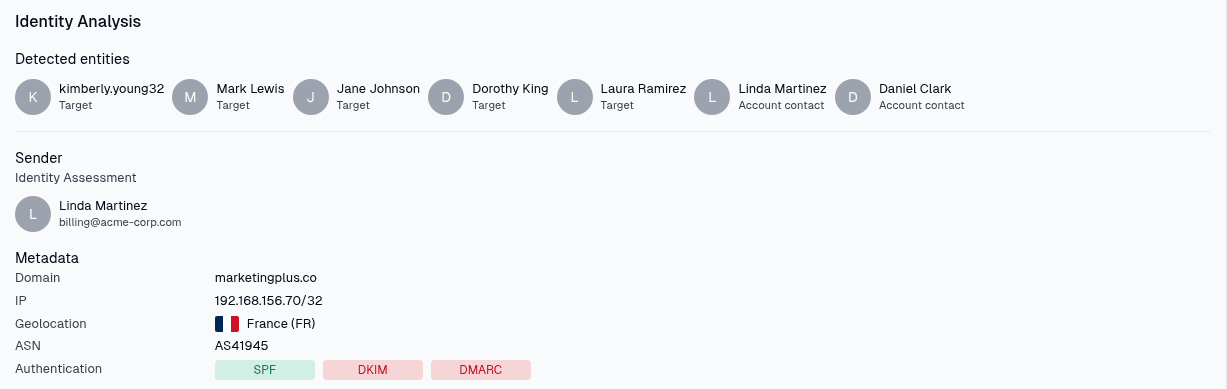
The Identity Analysis section shows who SucuriLabs detected in the message and how the sender identity was assessed. Analysts use this section to check whether the message appears to come from a legitimate sender or may be impersonating a trusted person or organization.
Detected entities
Detected entities are people or accounts identified in the message. They can include recipients, targets, account contacts, or other identities related to the incident.
Reviewing these entities helps analysts understand who the message references, who may be targeted, and whether the sender is trying to impersonate someone familiar to the organization.
Sender assessment
The sender assessment shows the identity SucuriLabs associated with the sender. Use this information to compare the displayed sender name with the actual email address and domain.
Differences between the sender name, email address, and expected organization can indicate spoofing, impersonation, or a suspicious sender relationship.
Sender metadata
The metadata area provides technical details about the sender:
| Field | Description |
|---|---|
Domain | The sender’s email domain |
IP | The IP address or network associated with the message source |
Geolocation | The detected location for the sending infrastructure |
ASN | The autonomous system associated with the sender IP |
Authentication | The SPF, DKIM, and DMARC authentication results |
Authentication results help determine whether the sender was authorized to send mail for the domain. Passing SPF, DKIM, or DMARC can support legitimacy, while failed checks may indicate spoofing or misconfigured sending infrastructure.
Use this section together with the email content and attachments to decide whether the sender identity supports or contradicts the incident verdict.