Accounts
The Accounts page lists the accounts that have access to your SucuriLabs instance. Administrators can review account details, check account status, manage roles, and create or remove accounts from this page.
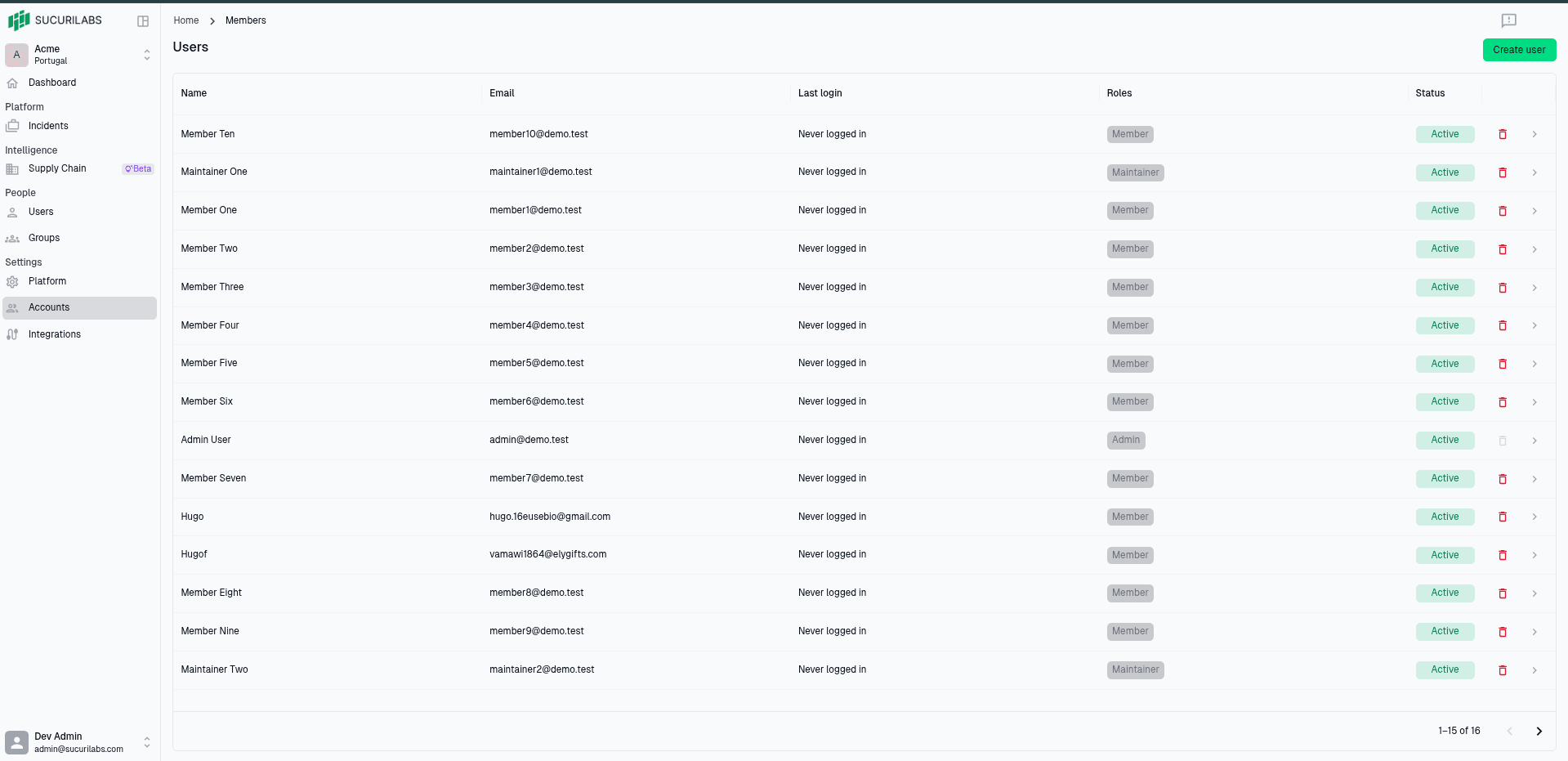
Create a new account
The new account form creates a new SucuriLabs account and assigns a role. Administrators can open this form from the Accounts page by selecting Create account.
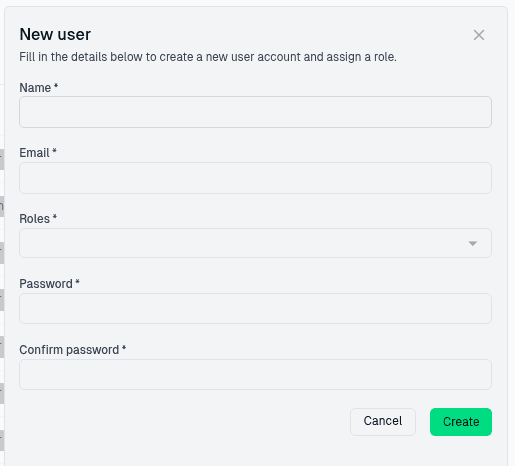
Account details
Complete each required field before creating the account:
| Field | Description |
|---|---|
Name | The account’s display name in SucuriLabs |
Email | The email address the account will use to sign in |
Roles | The permission level assigned to the account |
Password | The initial password for the account |
Confirm password | Confirms that the password was entered correctly |
The selected role determines what the account can access and manage in the platform. Choose the role that matches the account’s responsibilities.
Creating the account
After filling in the required details, select Create to add the account. Select Cancel to close the form without creating an account.
Edit an account
The General tab on the Edit account page lets administrators update the main profile and access settings for an existing account.
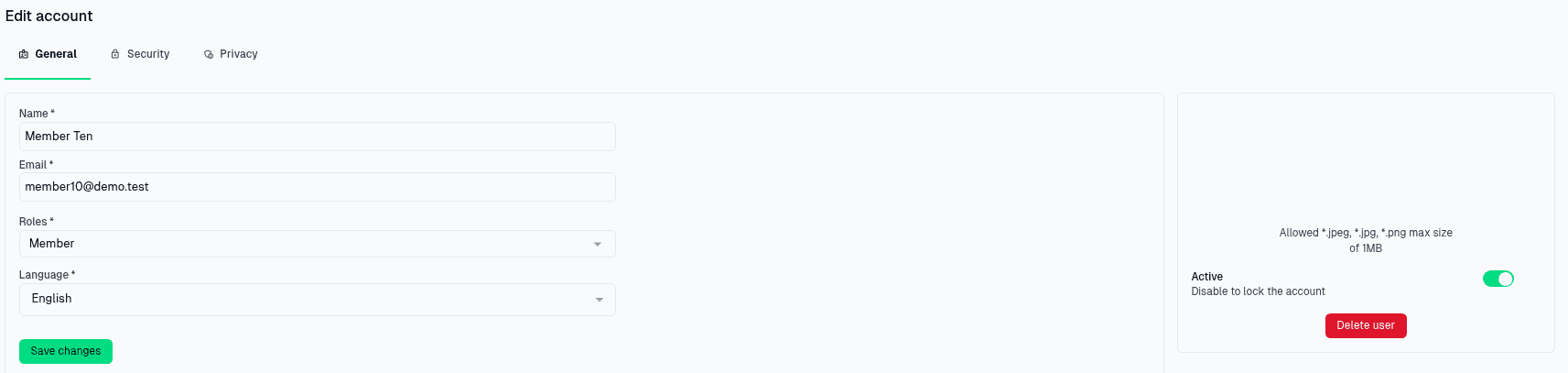
General account details
Use this tab to review and update the account’s basic information:
| Field | Description |
|---|---|
Name | The account’s display name in SucuriLabs |
Email | The email address used to sign in |
Roles | The permission level assigned to the account |
Language | The account’s preferred interface language |
Changes to the account’s role can affect what they are allowed to view, edit, or manage across the platform.
Role options
| Role | Description |
|---|---|
Admin | Full administrative access, including platform settings, account management, and security configuration |
Maintainer | Elevated access for managing day-to-day operational work without full administrative control |
Member | Standard access for regular users who need to use assigned SucuriLabs features |
Account status and profile
The profile area lets administrators update the account’s avatar when needed. The
Active toggle controls whether the account can be used. Disable this option to
lock the account out without deleting the account.
Saving or deleting the account
Select Save changes to apply updates to the account. Select Delete account only when the account should be permanently removed.
Manage account security
The Security tab on the Edit account page lets administrators update the password for an existing account.
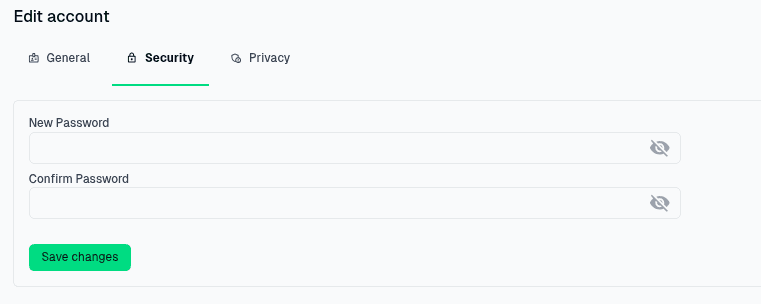
Password fields
Use the password fields to set a new password for the account:
| Field | Description |
|---|---|
New Password | The new password that will be assigned to the account |
Confirm Password | Confirms that the new password was entered correctly |
Both password fields must match before the change can be saved. Use the visibility icon inside each field to show or hide the password while entering it.
Saving changes
Select Save changes to update the account’s password. After saving, the account must use the new password the next time they sign in.