Users
The Users page lists the people in your SucuriLabs instance. Administrators can review user details, check group membership, confirm account status, and manage users from this page.
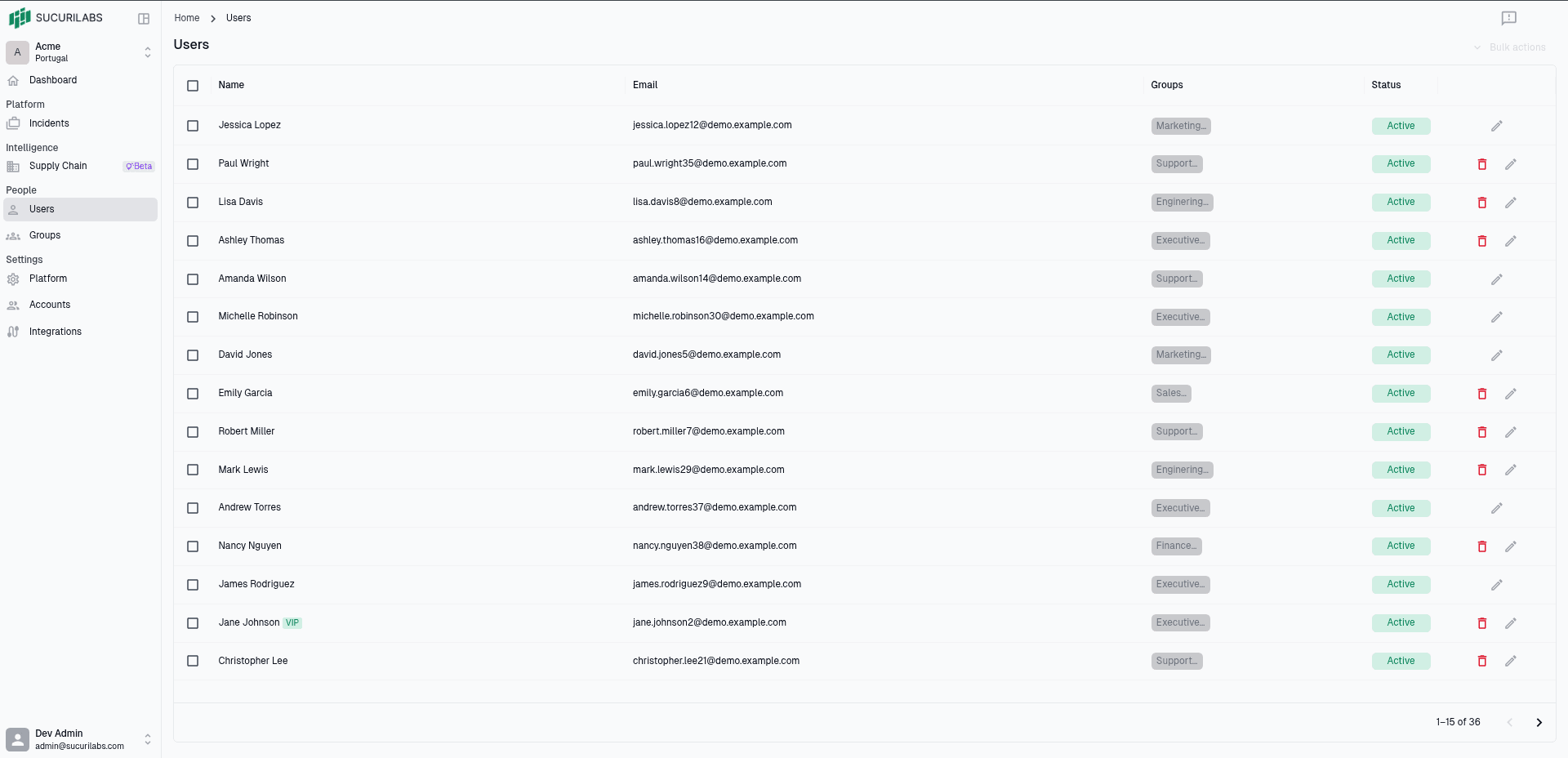
User table
The table shows the main information for each user:
| Column | Description |
|---|---|
Name | The user’s display name |
Email | The user’s email address |
Groups | The groups the user belongs to |
Status | Whether the account is currently active |
Use the checkboxes to select one or more users. When users are selected, bulk actions can be used to apply changes to multiple accounts at once.
Managing users
Use the edit action to update a user’s details. Use the delete action when a user should be removed from the instance.
The status badge helps administrators quickly confirm whether each account is active.
User fields
| Setting | Description |
|---|---|
Active | Controls whether the user is included in monitoring, alerts, and reporting |
VIP | Marks the user as a priority target for analysis, alerts, and reports |
Name | The user’s display name |
Groups | The groups assigned to the user |
Edit User
The Edit user form lets administrators update a selected user’s information and control how that user is included in analysis, alerts, reporting, and protection workflows.
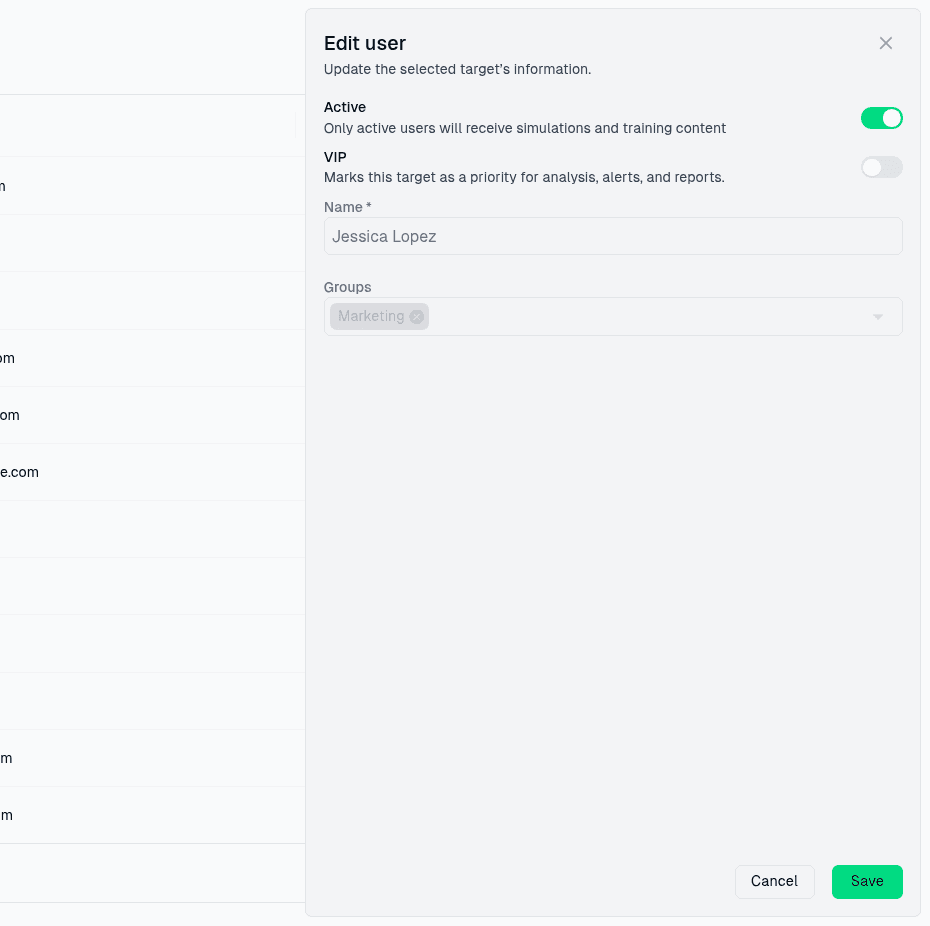
Disable Active when the user should remain in the system but should not be
included in monitoring, alerts, or reporting. Enable VIP for high-priority
users whose activity should receive extra attention in analysis and reporting.
Select Save to apply the updated user settings.
Select Cancel or close the form to exit without saving changes.