Groups
The Groups page lists the user groups in your SucuriLabs instance. Administrators can use groups to organize users by department, team, location, or any other structure that helps manage incident analysis, alerting, and reporting.
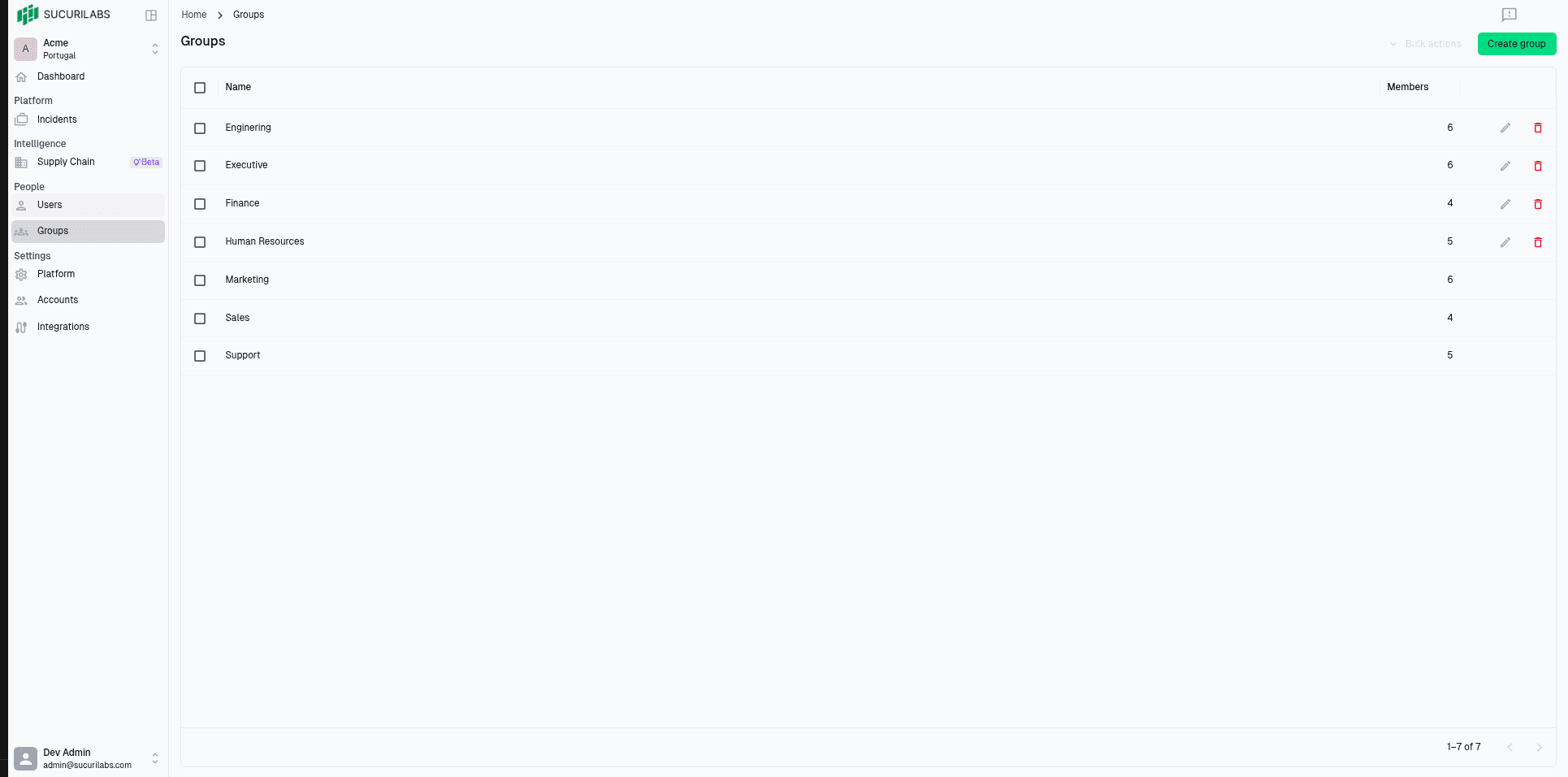
Group table
The table shows each group and the number of users assigned to it:
| Column | Description |
|---|---|
Name | The group name |
Members | The number of users assigned to the group |
Use the checkboxes to select one or more groups. When groups are selected, bulk actions can be used where available.
Managing groups
Keeping groups accurate helps administrators target the right users in incident review, analysis, alerts, and reports.
Use Create group to add a new group, the edit action to update an existing group, and the delete action to remove a group that is no longer needed.
Group details
Enter a name for the new group:
| Field | Description |
|---|---|
Name | The name of the group that will appear in the Groups list and user group selectors |
Create Group
The Create a new group form lets administrators add a new user group to SucuriLabs. Groups help organize users for reporting, analysis, alerts, and incident review.

Use a clear name that matches the team, department, location, or audience the group represents.
Click Create to add the group.
You can also click Cancel or close the form to exit without creating a group.
Edit Group
The Edit group form lets administrators update the name of an existing group. Use this when a team’s name, department, location, or audience changes but the group should keep its assigned users and related history.

| Field | Description |
|---|---|
Name | The updated group name that will appear in the Groups list and user group selectors |
Use a clear name that reflects the users assigned to the group.
Click Save to apply the updated group details.
You can also click Cancel or close the form to exit without saving changes.