Members
Invite colleagues to your workspace and manage their access.
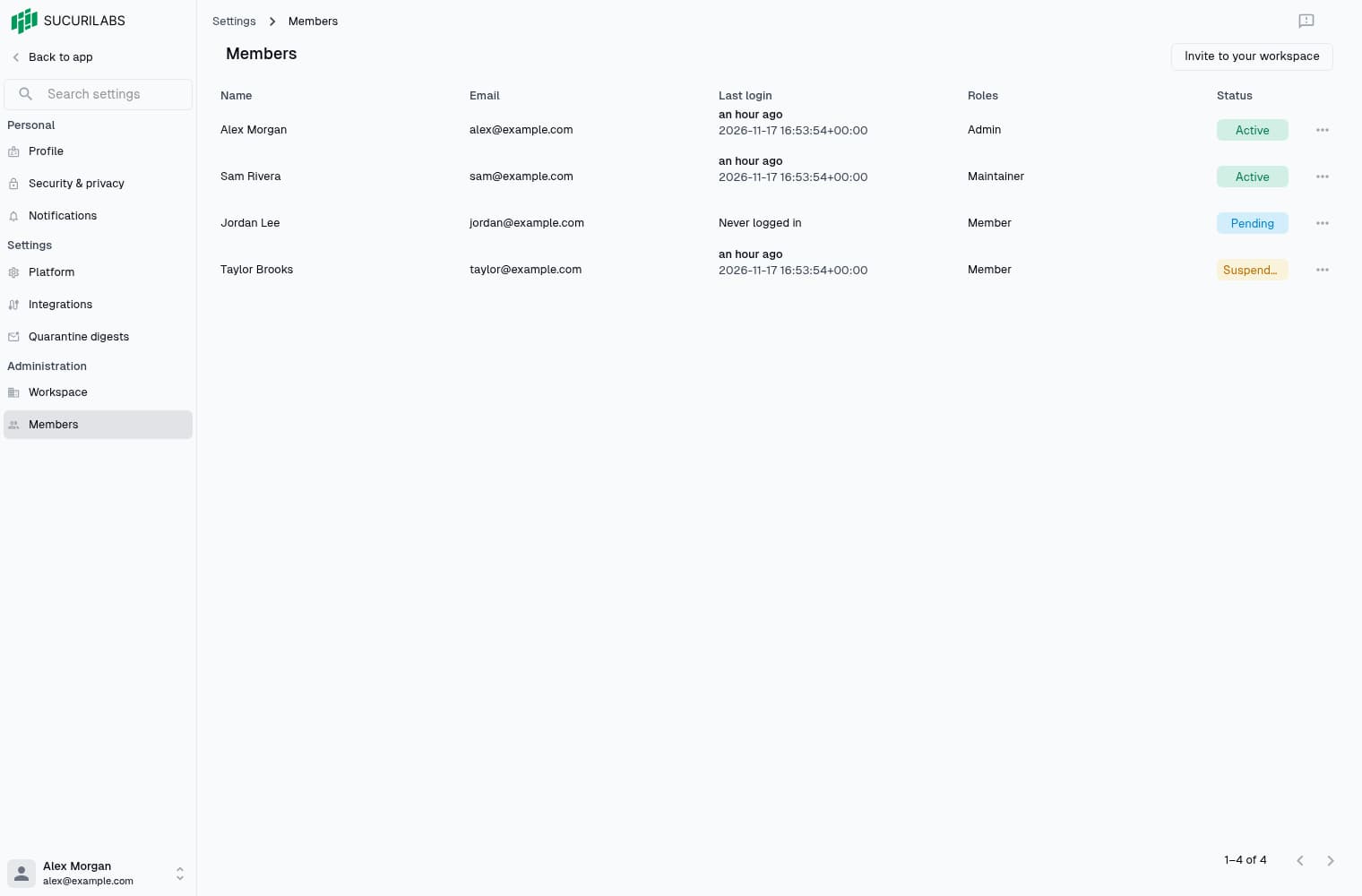
Member overview
Members sign in to SucuriLabs to investigate incidents or manage the platform. Manage them in Settings > Administration > Members. Viewing and editing members require separate workspace permissions.
Users are the people and mailboxes you monitor. Activating a user does not give them workspace access.
Invite a member
Select Invite to your workspace, enter a name and email, choose a role, then select Send invite. The member stays Pending until they accept.
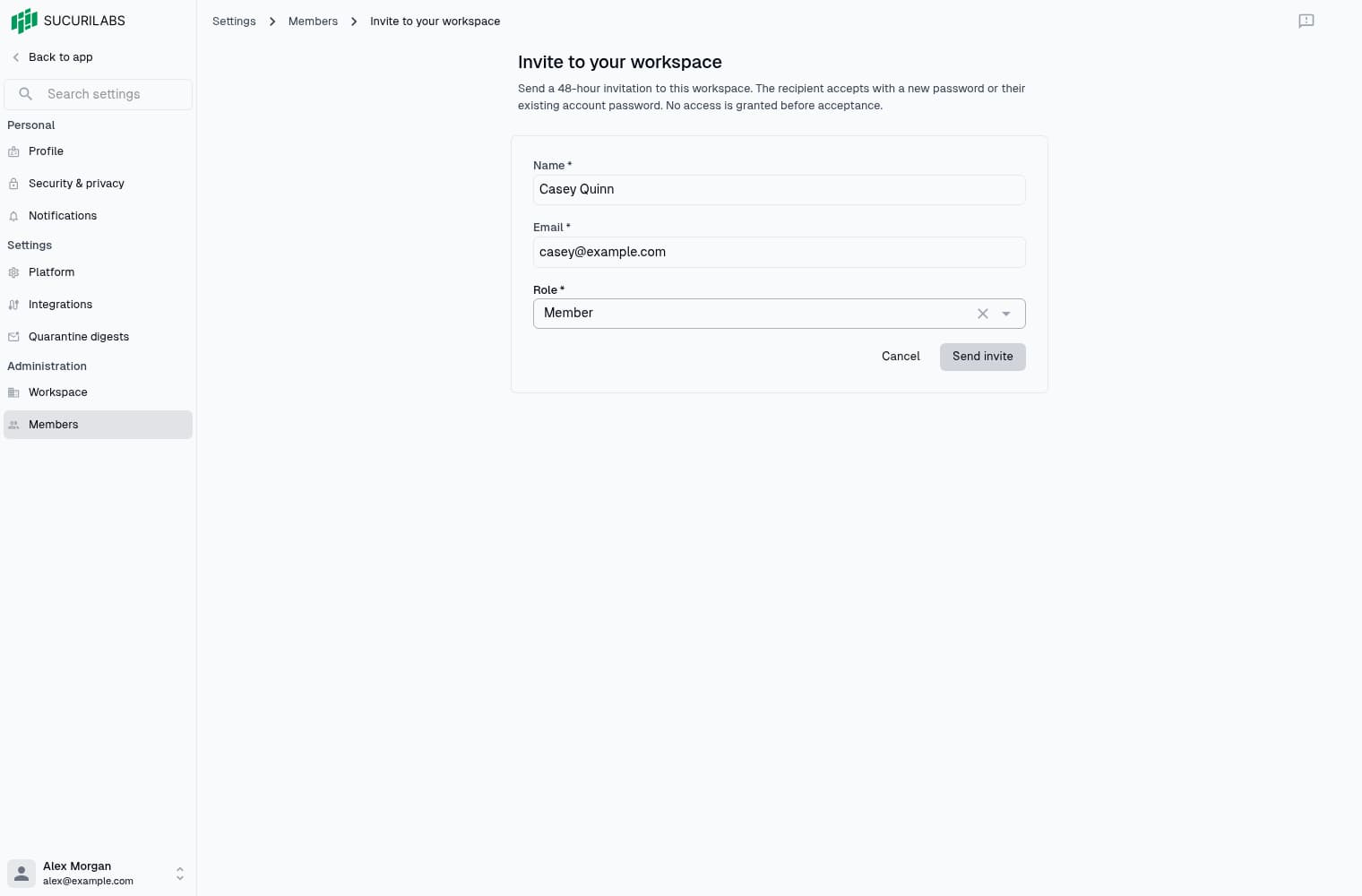
Invitations expire after 48 hours. New members choose a password with at least 8 characters and at most 72 UTF-8 bytes. People with an existing SucuriLabs account use their current password.
After accepting, select the sign-in link on the invitation page. Accepting an invitation does not sign you in automatically.
Resend an invitation
Open a Pending member’s actions menu or editor and select Resend invitation. A successful resend renews the link for 48 hours and invalidates older links.
If delivery fails, check the Members list before trying again. The Pending member may already exist. Ask an administrator or support to check delivery, then resend from that member rather than creating another invitation.
Ask for a resend if a link has expired, was already used, or is invalid. A link also stops working after five failed credential attempts.
Member status
| Status | Meaning |
|---|---|
| Pending | Invitation not accepted; no workspace access |
| Active | Invitation accepted and access enabled |
| Suspended | Invitation accepted but access disabled |
Pending members must accept their invitation before they can become Active.
Edit a member
Double-click a row or choose its edit action to update a member’s name, role, or access. Save the form to apply changes. Roles and suspension apply only to the current workspace; changing a role may require the member to sign in again.
Avatar uploads save separately. Use a PNG or JPEG no larger than 1 MiB.
Names and login emails belong to the shared account. Another member’s email is read-only, and their password and privacy preferences are owner-managed. Open your own row to manage personal settings.
You cannot change your own role or status, remove yourself, or remove the last active administrator. Available role assignments depend on your permissions.
Remove workspace access
Choose the member’s delete action and confirm to remove their membership. This does not delete their SucuriLabs account or access to other workspaces.
Administrator memberships cannot be deleted directly. An authorized administrator must first change the other member’s role, where permitted. To temporarily disable access without removing a membership, turn off Active instead.